
Website Maintenance
Website Maintenance Instructions
This website is created and maintained using the Kopage tool. To access Kopage,:
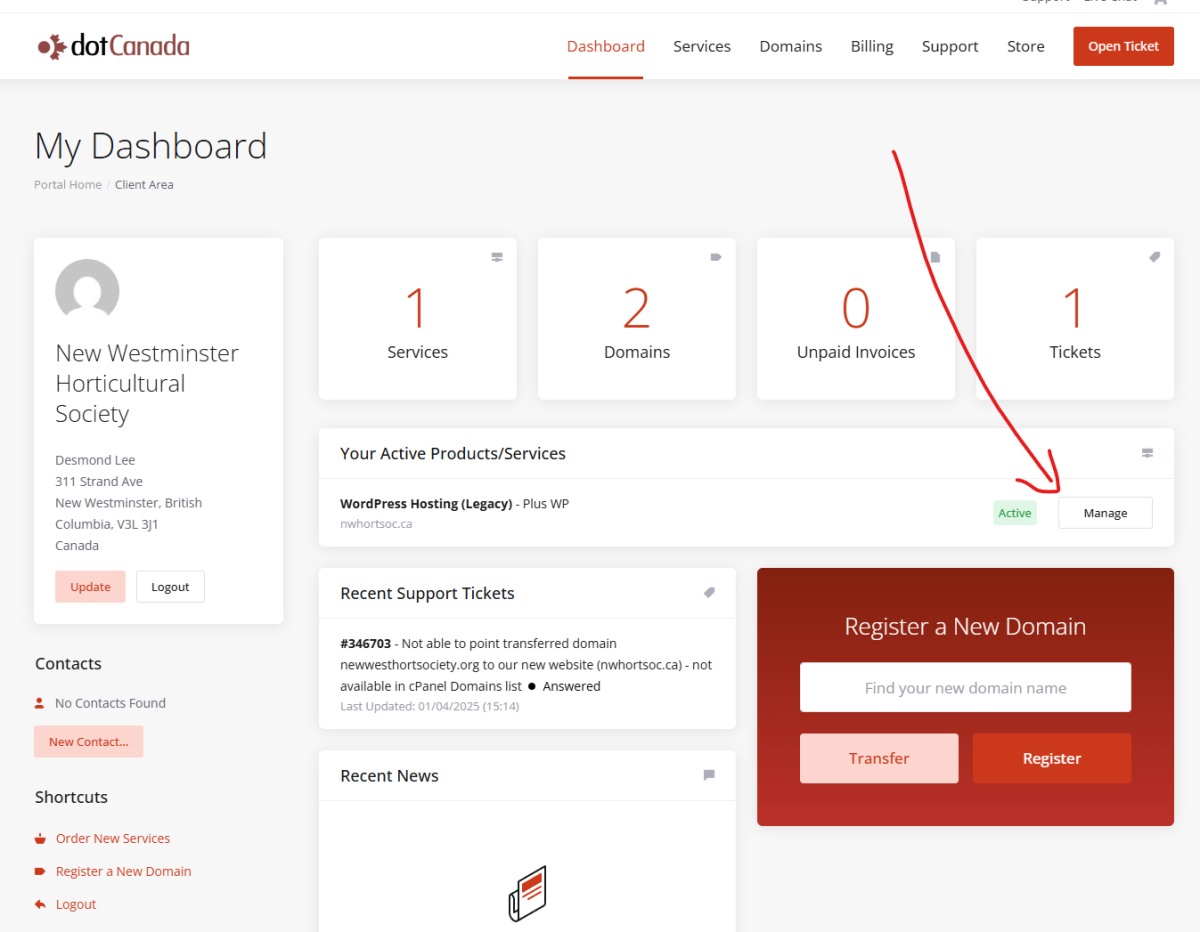
- Log into dotCanada
- Navigate to My Dashboard -> Your Active Products/Services -> Manage
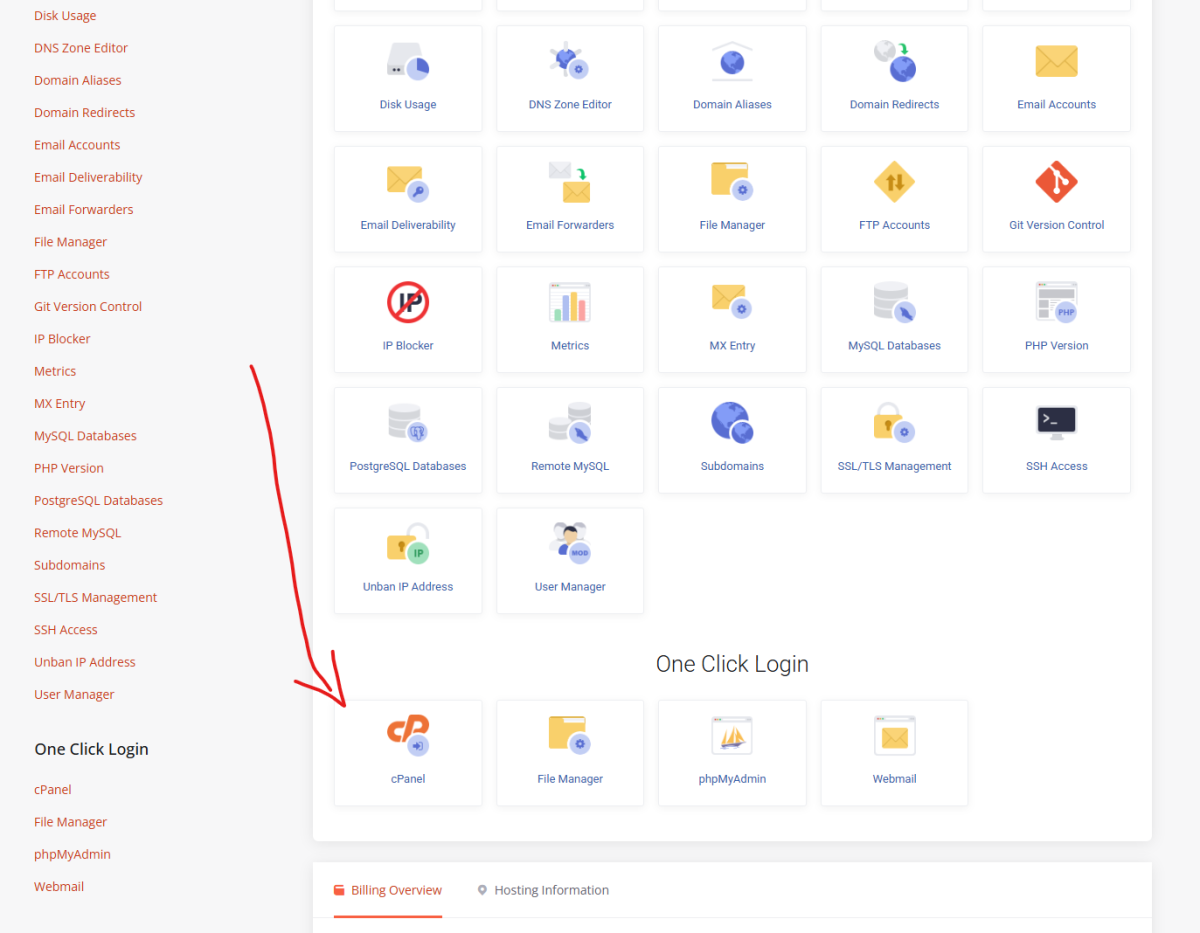
- Scroll down to the bottom of the Manage page and click on the One Click Login -> cPanel link to open cPanel
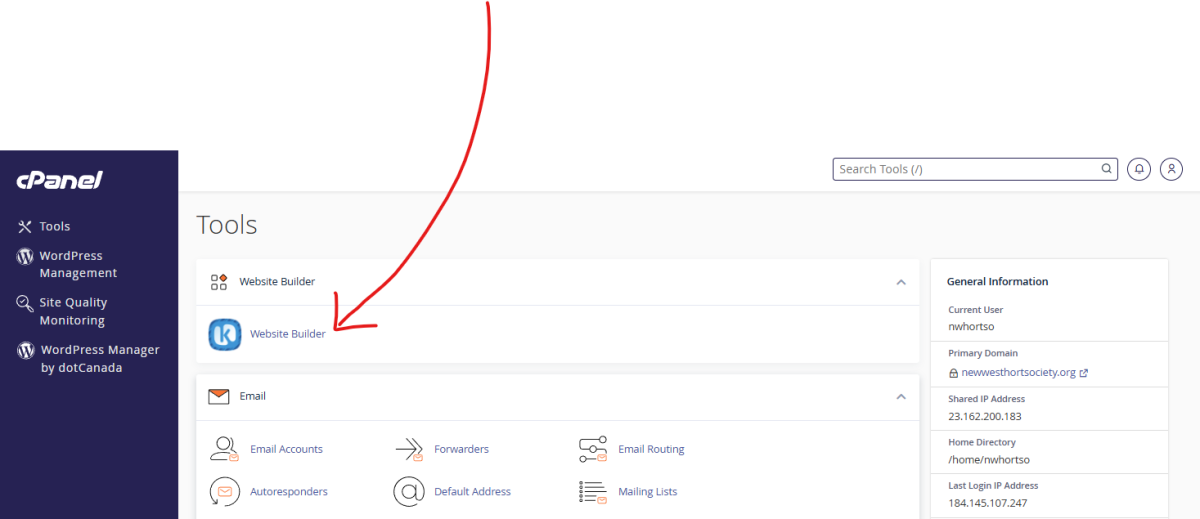
- At the top you will see K Website Builder (blue icon) under the Tools heading. Click on this link
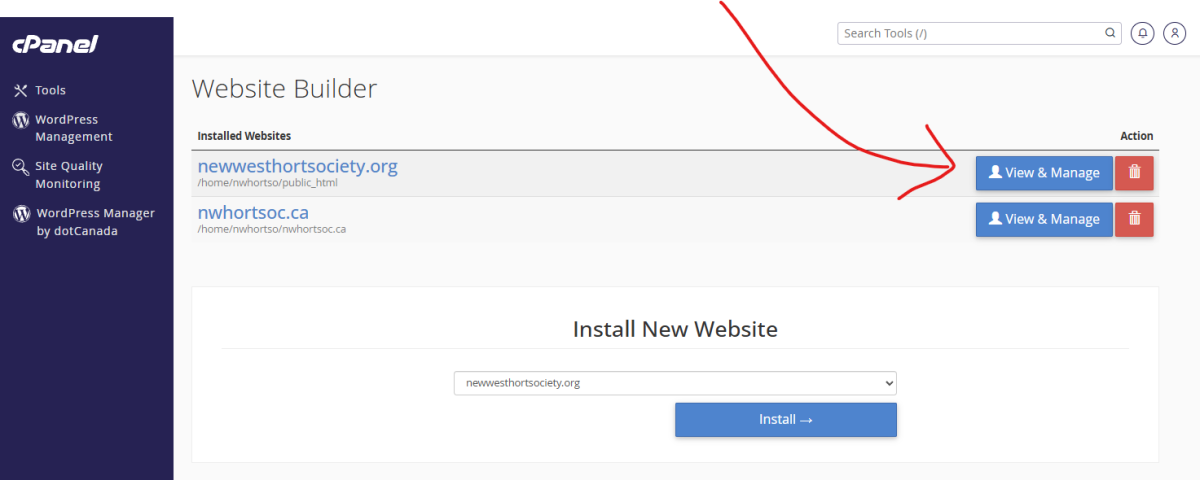
- Click on View and Manage to start editing
See the images below to help you find the buttons to press.
Best Practices
Please follow these best practices as much as possible to keep the website as easy to maintain and clutter-free as possible.
- Put all images/videos/files in a subfolder: When uploading an image to the website, please make sure to create a reasonably descriptive folder name, for example, the subpage name that the photos will be in. This will help keep the data folder clutter free, and will help know what photos can be deleted in the future
Setting Website Icon
To set the icon, you have to create a 32x32 icon, and save it as favicon.ico (can use free GIMP program to export as .ICO) in the root folder. Then in the <head> section of the website, add in the following code:
<link rel="icon" type="image/x-icon" href="/favicon.ico">
The <head> section can be access from the Kopage website editor via Settings -> Website Configuration -> SEO and Meta Tags -> Scroll down to Custom Code </HEAD> textbox where you can add the above HTML.
Custom HTML Code - How to Gain More Control
The Kopage templates do not offer a great amount of design flexibility. One way to get around this is by using the custom HTML by selecting Content->Apps->Custom HTML Code when you add new content. To maintain a cohesive style, you can add a regular content block, edit it, then copy the HTML code from it (Block Settings->HTML), then add a Custom HTML Code block and paste in that HTML along with whatever other HTML you want to add.
Calendar Link on Home Page
Each year, in January, the link to add the meetings to Google Calendar should be updated with the meetings for the new year. To do this, create a new meeting in your Google calendar with the following properties:
Title: NWHS Meeting 7pm @ Centennial Lodge
Start Time: 7pm
End Time: 9pm
Location: Centennial Lodge, New Westminster
Recurrence: Every 2nd Tuesday
Start: The 2nd Tuesday of February
End After 10 Occurrences
Reminder: 1 day prior
After saving your meeting, click on your meeting in Google Calendar, then click on the three dots, then Publish Event. Copy the Link to event text.
Paste this text into the Link Address for the "Click here to add the 20XX meetings to your Google Calendar" link on the homepage.
Embedding Interactive Google Maps Frame
1. Navigate to Google Maps and click onto the location you want to share
2. Click the Share button, then click the "Embed a map" button and copy the HTML
3. Create a new content block in Kopage, you can choose one from the templates or Apps -> Custom HTML Code
4. Click on the gear (Block Settings) for the new content and insert the Google Maps iFrame code where appropriate