Email Forwarding
How to Forward Emails / Change Forwarding Addresses
1. Open cPanel
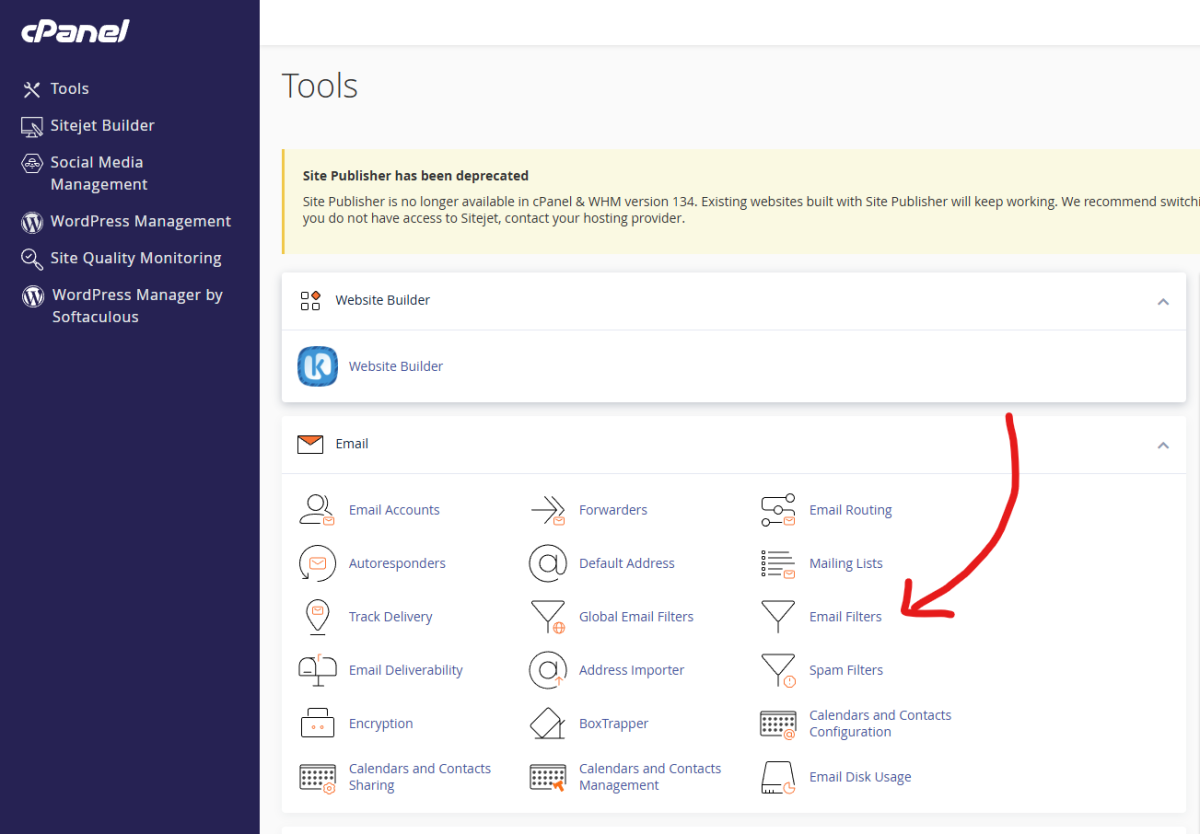
2. Under Email, open Email Filters
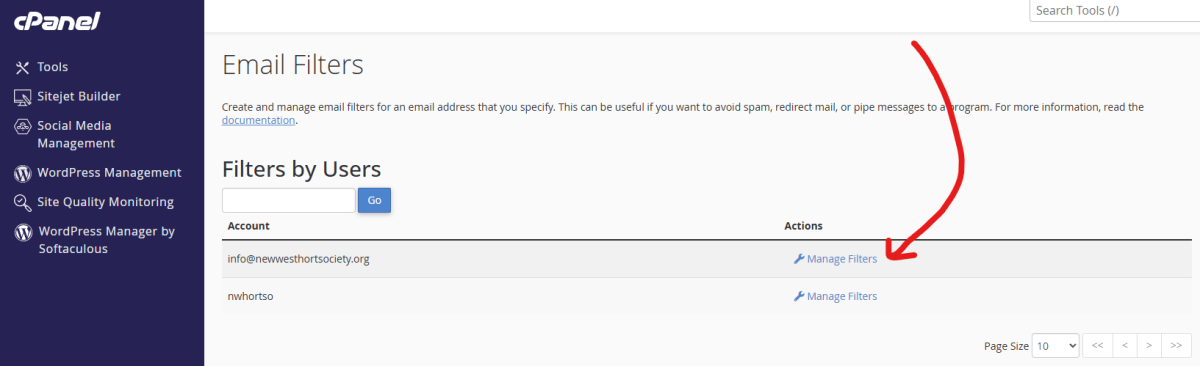
3. Under Email Filters, next to the account info@newwesthortsociety.org, click on Manage Filters
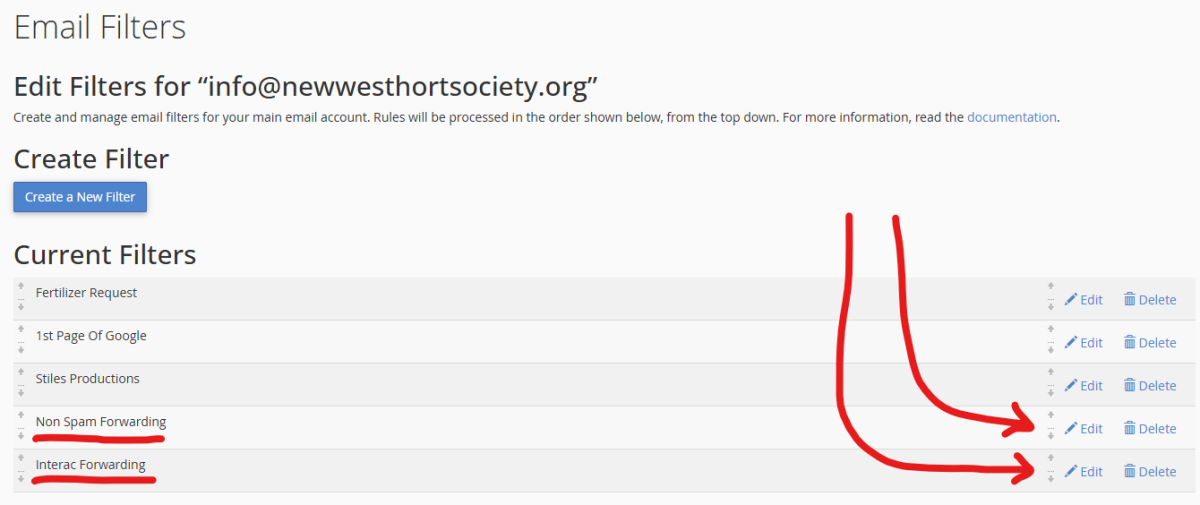
The two filters we have set up are:
1. Non Spam Forwarding: This is used to forward all emails coming to info@newwesthortsociety.org that have not been marked as spam by Apache Spam Assassin
2. Interac Forwarding: This is used to forward all emails coming to info@newwesthortsociety.org that begin with "Interac", in other words, all of our Interac E-Transfer notifications
Click on the Edit button for the filter you wish to edit.
The add people from the filter:
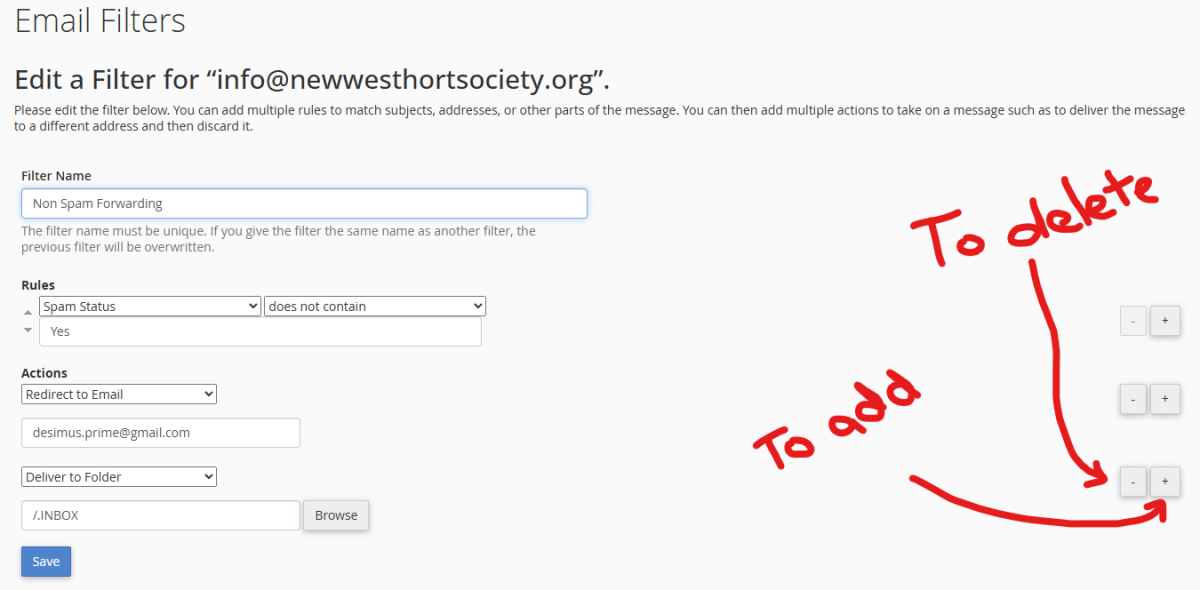
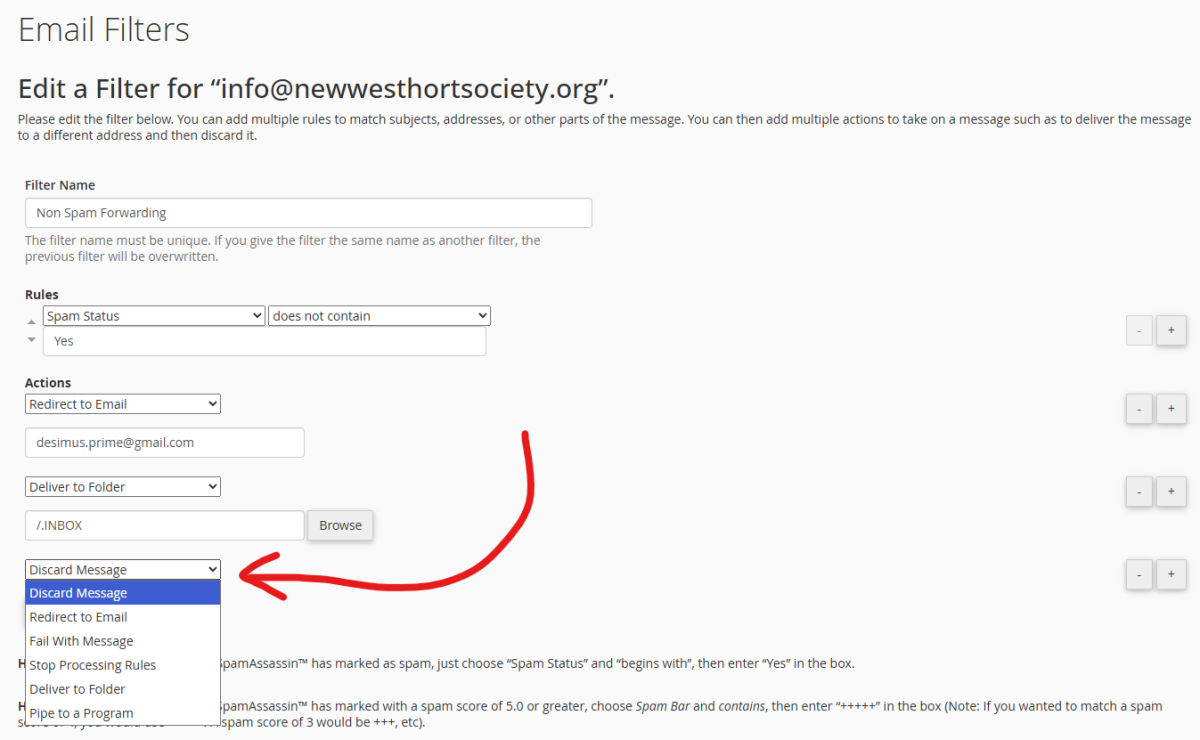
1. Click the "+" button under any of the Actions to create a new Action at the bottom of the Actions list
2. Click on the new drop down box, which will default to "Discard Message", and make sure you change it "Redirect to Email". This will create a new textbox
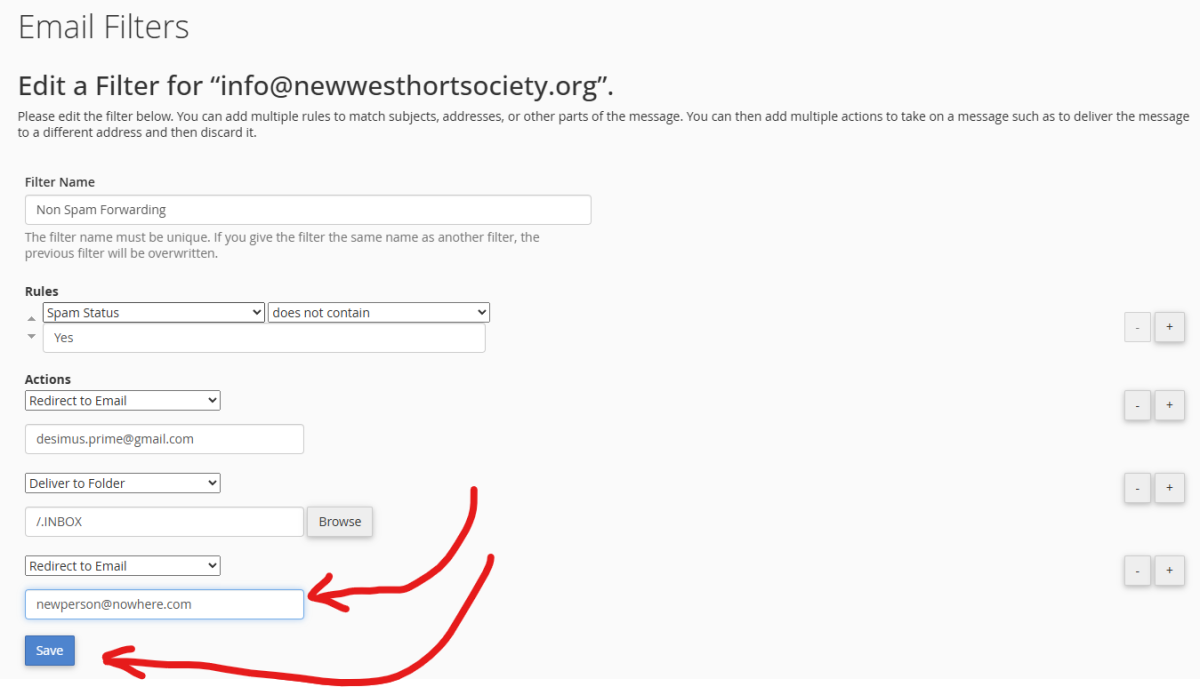
3. Enter the email address you want to direct the email to in the new textbox
4. Click Save, ensuring that none of the actions say "Discard Message", or the message may be deleted from the Inbox, which is something we don't want
To remove people from the filter:
1. Find the "Redirect to Email" line of the email address you want to stop forwarding to and click on the "-" button
2. Click Save